Architecture and design

Remote desktop for Architecture Teams

LoLa is for practices that already have carefully configured Windows workstations, BIM models, CAD plugins, render tools and project storage. Connect to that environment remotely instead of rebuilding it on every laptop.

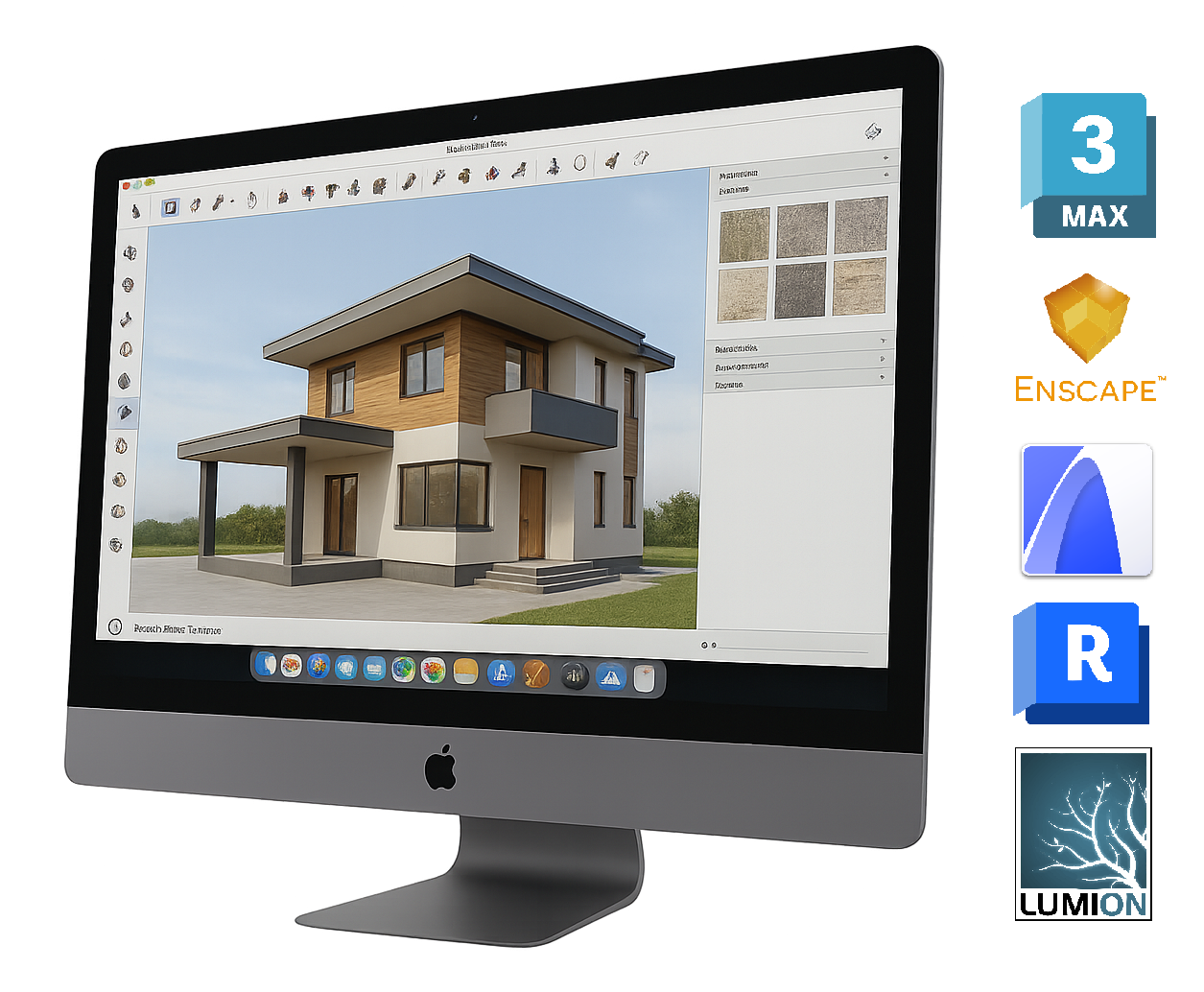
Architectural house model displayed in 3D rendering software on an Apple workstation

Workflow demo

See remote design work in action.

A simple visual example of the core pattern: keep the workstation and specialist tools central, then connect from another device for design review or project access.

Where LoLa fits

Use the computers and workflows your team already trusts.

01

BIM coordination access

Open Revit, Navisworks, model coordination tools or drawing packs on the workstation that already has the right files, plugins and licences.

02

Site and client review

Give directors, site teams or clients controlled access to a model review without copying sensitive files onto personal devices.

03

Industrial design workstations

Reach CAD, visualisation and GPU-heavy design tools from Mac, iPad or a lightweight laptop when the workstation stays in the studio.

Remote desktop first

Start with your PC. Add Cloud PCs only when needed.

LoLa is for teams that need practical access to real workstations, project software and controlled environments without moving the whole workflow onto every user device. The primary journey is to keep the important machine, application stack and project context in place, then give the right users a better way to reach it.

That keeps the buying decision simple: validate LoLa on one real workflow, add professional or team controls when it is useful, then add managed Cloud PCs only where extra hosted capacity is needed.

Choose one live projectValidate LoLa on an actual model, not a sample file, so viewport movement, markup and review behaviour are honest.
Map project rolesSeparate daily designers, review-only leaders, consultants and support users before scaling access.
Add Cloud PCs for project gapsUse hosted workstations for temporary project seats, client review rooms or new hires only when no suitable host exists.

Why teams choose LoLa

Practical access across every device.

01

Project data stays central

Avoid unnecessary copies of models, drawings and client assets across unmanaged endpoints.

02

CAD/BIM environment continuity

Keep add-ins, templates, network paths, fonts and licence setup on the machine already configured for the practice.

03

Portable review access

Directors and site teams can connect from Mac or iPad for review when the workflow is suitable.

04

Practice-level rollout

A workflow demo can map workstations, roles, project risk and support ownership.

05

Temporary seat option

Cloud PCs can fill hardware gaps for project bursts, not replace every existing workstation by default.

06

Clear buyer routing

Teams go to a design workflow demo; one-person validation can start free.

User journey

From project review to practice-wide access

Begin with a live project review on one configured workstation, then decide which roles need remote access and which hardware gaps are worth filling.

Pilot one model reviewTest viewport movement, annotations, peripherals, display quality and file access on a real project.
Add review-only usersBring in directors, site teams or consultants where controlled access beats local file transfer.
Plan the workstation mixDecide which machines stay on premises and which gaps justify managed Cloud PCs.

FAQ

Common questions.

Can LoLa run CAD or BIM software directly?

LoLa gives remote access to the Windows workstation where that software already runs. The workstation still needs the right hardware, licences and project access.

Does this move our project data into LoLa?

No. The usual workflow keeps files on the host PC or existing storage; LoLa provides the remote desktop access layer.

Is this suitable for site review?

Potentially. Test the site device, network, display needs and model workflow before using it on an active project.

When should an architecture team use Cloud PCs?

When there is no suitable workstation for a temporary seat, project review environment or new starter.

Related workflows

Help visitors continue the right journey.

Next

Remote Desktop for Engineering Teams

Continue the solution journey for a related workflow.

Explore this page
Next

Managed Cloud PCs

Add a managed host when there is no suitable PC to connect to.

Explore this page
Next

Pricing

Compare Personal, Pro and Teams routes before rollout.

Explore this page

Related insight

Help visitors choose with confidence.

Need a host?

No suitable PC? Add one only when needed.

LoLa connects to your own machine first, then offers managed Cloud PCs for clean demo environments, temporary project seats, review machines or extra capacity.